The current model for the monthly events listings is to have a table in a post that is also a wiki … and so here is further information on what this means, and how you can add new content.
** First, what is a wiki?
A wiki is a post that is designed to be collaborative. Unlike your usual posts that can only be edited by you, or site moderators, this is one that any user (who has been on the site for a certain amount of time), can change at any time.
To recognise this, you will see that at the bottom of the post, there is an ‘Edit’ button

Then, each time someone updates the post, a new version is created and anyone can see who made each change, and what they changed, which keeps things honest

** How to make, or edit, a table
This site allows users to create a table within a post. To create a brand new one, start a new topic and click on the ‘+’ symbol. I’l do a separate post on this at some stage.
However, the table in the Events post should already exist, so all we want to do is add new lines.
The simplest way is to click to Edit the post, then switch to markup mode by clicking on the first button that says M  - this switches from regular text mode to a simplified code version.
You will see that a new side-by-side window opens up with the markup content and the final version
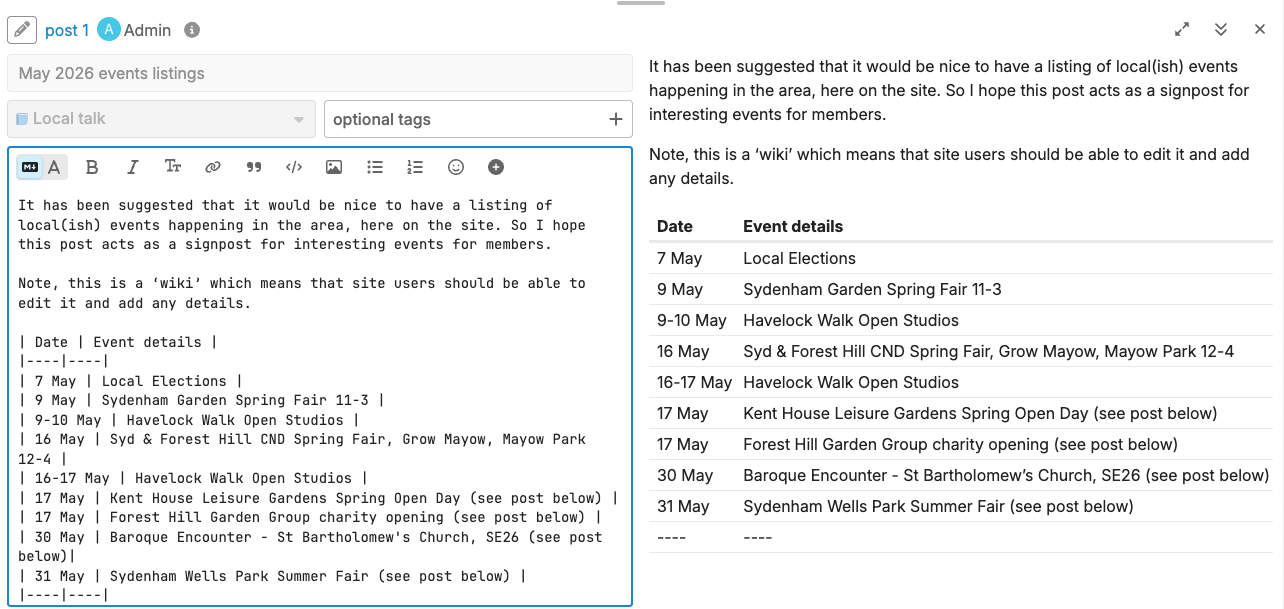
Each cell in a column is separated by the “|” symbol (which is shift-\ on my keyboard), and you need to have one for each column in a row - so our table has two columns, so each line has to have two cells, a bit like this | date | title |
There will usually be an empty line at the bottom, like this |----|----| so you can just copy this, add a line break in the place you want to add your event, then paste this and replace the ---- with your content. Alternatively, just type this in yourself.
My hope is that we can keep the original table in this post ‘clean’ with just dates and event names, and adding links to that name, but posting any descriptions or images in a separate reply below. Please try to keep the events in chronological order so they’re easy to scan.
When finished, simply ‘Save’ the work and it will be published for everyone.
Click on that first button in the post window to switch back to regular text mode for future posts.